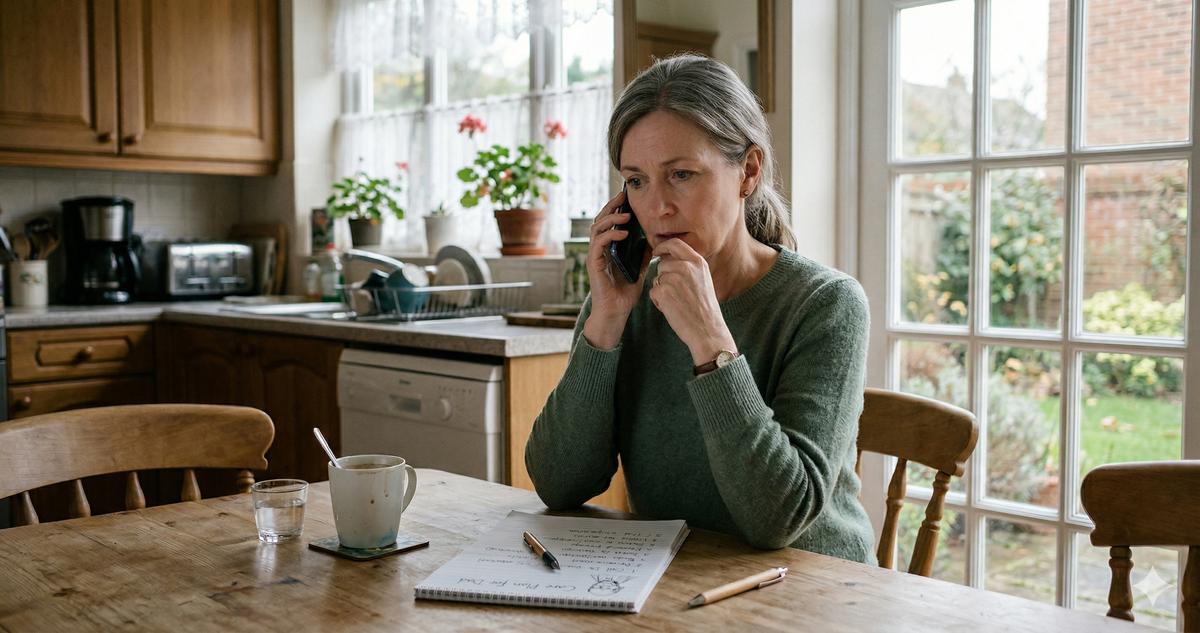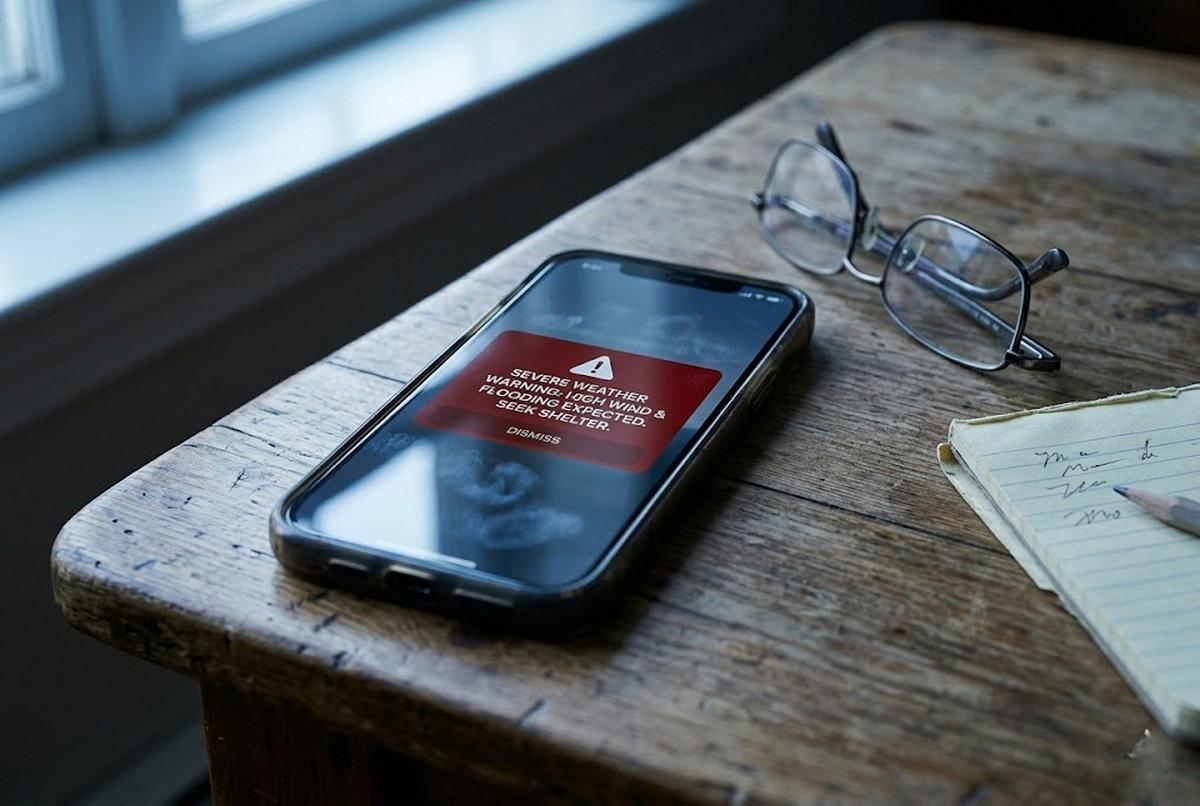
My mom called me on a Wednesday afternoon last August, half-shouting over the sound of her phone alarming. "Anak, it won't stop. Six different things are beeping at me." I had her hold the phone up to FaceTime so I could see the screen. Six weather alert apps were stacked on her home screen, all of them pulsing red, all of them sounding the same kind of urgent ringtone, none of them telling her anything she could act on. My nephew (twelve, well-meaning, an engineer in training) had visited the weekend before and decided his Lola needed "every weather app, just in case." He had downloaded six.
A tornado warning had popped for a county forty miles north of her. The apps disagreed about how serious it was. Two said "take cover now." One said "thunderstorm watch." One had a paywall up that read Subscribe to see the full radar — $7.99/week. My mom was sitting at her dining room table in Dearborn with the lights flickering, trying to figure out which one to believe. That is the failure mode I want to write about today. Not too few alerts. Too many, from too many sources, with too much noise. The fix is fewer apps, the right ones, and a couple of phone settings most people never touch.
The Six-App Problem
Three apps. That's the right number on a senior's phone for disaster and weather. Not six. Not twelve.
When you stack a dozen apps that are all polling the same federal data feed, you end up with a phone that sounds the alarm a dozen times for the same storm and disagrees with itself on the details. Worse, several of the most-downloaded "weather radar" apps in the App Store are bait-and-switch products. Free to install, then a $9.99/week subscription dropped on you the third time you tap a feature. I uninstalled four such apps from my mom's phone that afternoon. One of them had charged her $39.96 over six months because she had hit "Continue" through a subscription screen she did not realize was a subscription screen.
FEMA App: The One Most People Skip
The federal FEMA app is the one almost nobody on my parents' street has installed, and it's probably the most useful of the three. Free, no subscriptions, no upsells, built and maintained by the Federal Emergency Management Agency. Search "FEMA" in the App Store or Google Play and confirm the publisher is Federal Emergency Management Agency before you tap Get.
What it actually does:
- National Weather Service alerts for up to five locations of your choosing. You enter ZIP codes for your house, your kids' houses, your assisted-living parent's address. When something serious hits any of those, the app pings you.
- Disaster Assistance application built in. This is the part nobody talks about. After a federally declared disaster (hurricane, flood, tornado, wildfire), survivors can apply for FEMA aid directly inside the app instead of trying to navigate DisasterAssistance.gov on a tiny browser. You upload photos of damage from the phone you already have in your hand.
- Open shelter finder. When the Red Cross or a local agency opens a shelter, FEMA's app lists it with the address, hours, and accessibility notes. My mom does not drive at night anymore, so we have used this twice, both times for nephews and nieces in flood-watch counties downstate.
- Preparedness checklists. Bored Saturday afternoon? Sit with your parent and walk the "build a kit" checklist. It's a forty-minute conversation that will save you a panic attack later. If hurricane season is the specific worry, our senior hurricane evacuation plan covers the medication kit, special-needs shelter registry, and utility filings that pair with what's on the phone.
The app is also available in Spanish, which matters for plenty of families I know.
NOAA Weather Radar Live (Not the Knockoffs)
Where people get burned is the next one. Search "NOAA weather radar" in the App Store and you get forty results. Most of them are third-party apps that scrape NOAA's free public data and wrap it in ads and subscriptions. A few are perfectly fine. Several are predatory.
The one I install on my parents' phones is NOAA Weather Radar Live, published by Apalon Apps. Yes, that is technically a third party, not the actual government. The data is the same public NOAA feed every weather app uses. What I like about Apalon's version is that the free tier is genuinely usable for a senior — current radar, the seven-day forecast, severe weather alerts, hurricane tracking. The premium upgrade is one-time-purchase optional, not a recurring weekly subscription pretending to be a one-time purchase. As of this writing the unlock runs around $9.99 once. I don't pay for it on my mom's phone. The free version is enough.
Granted, you can get most of this from your iPhone's built-in Weather app, which now pulls from Apple's own forecast service plus government feeds. If your parent only wants "is it going to rain Sunday," the built-in Weather app is fine and you can skip a third-party radar app entirely. NOAA Radar Live earns its slot when your parent lives in tornado alley, hurricane country, or anywhere a fast-moving storm front matters and they want to see the actual blob of weather moving across a map. My mom in southeast Michigan does. My in-laws in coastal North Carolina absolutely do.
The National Weather Service itself does not publish a consumer app. They publish data feeds and the weather.gov website, which everyone else builds on top of. So when you see an app calling itself "the official NOAA app," treat that with skepticism. Read the publisher line. Check who actually made it.
Red Cross Emergency: The Toolbox
The Emergency app from the American Red Cross is the third one I keep on the phone. Free, no upsells, made by the Red Cross. It is shaped a little differently from the FEMA app — less paperwork, more first-aid and in-the-moment help.
What it does that the others don't:
- Monitors over 35 hazard types in one place. Severe thunderstorms, tornadoes, wildfires, floods, earthquakes, hurricanes. You set the location and the categories you care about. My dad scrolled through the hazard list and said, "I want them all on." Some habits don't go away.
- "I'm safe" notifications. One tap sends a message to your designated contacts that you're okay. Useful for adult children of seniors in a state that just got hit by a storm.
- First-aid guides offline. What to do for choking, a fall, chest pain, heat exhaustion — accessible without internet, which matters when the cell tower goes down with the power.
In any case, between FEMA, NOAA Radar, and Red Cross Emergency, your parent's phone is covered. Three apps. Fifteen-minute install if you know what you're looking for.
The Free Setting Most People Never Turn On
Here is the part I want to put in capital letters on a Post-it.
Wireless Emergency Alerts (WEA). These are the system-level alerts pushed by the federal government and your wireless carrier directly to every phone in a geographic area. Tornado warnings. Flash flood emergencies. AMBER alerts. Presidential alerts. They override silent mode. They sound a distinct attention tone that you cannot get from a third-party app, because the carrier itself is sending it. You do not need any app to receive them. You do need them turned on.
On iPhone:
- Open Settings
- Tap Notifications
- Scroll all the way to the bottom, past every app, until you see the Government Alerts section
- Make sure Emergency Alerts, Public Safety Alerts, and AMBER Alerts are all green
On Android:
- Open Settings
- Tap Notifications (sometimes labeled Apps & Notifications)
- Tap Wireless emergency alerts or Advanced then Wireless emergency alerts
- Toggle every category on. The exact menu varies by manufacturer (Samsung buries it slightly deeper than stock Android), but the path always lands at a list of alert types.
When I checked my mom's iPhone after the August tornado scare, AMBER Alerts were on but Emergency Alerts had been switched off. I have no idea when or how. My best guess is she tapped through a notification once, hit something, and didn't realize what she'd disabled. This is the first thing I now check on any senior's phone before I even open the App Store. Five seconds, and it is the single most important thing on the device for severe weather.
Lock-Screen ICE — The One Worth Doing Tonight
If the worst happens (a fall, a stroke, a car accident), a paramedic needs to know who to call and what medications you take. They cannot unlock your phone. But they can swipe up on the lock screen and tap Emergency, then Medical ID, and see whatever you've put there. Most seniors have nothing put there. Let's fix that in five minutes.
On iPhone (iOS 17+):
- Open the Health app (white square with a red heart)
- Tap your profile photo in the top right corner
- Tap Medical ID
- Tap Edit
- Fill in: medical conditions, allergies, medications, blood type, organ donor status, emergency contacts
- Critical: scroll down and turn on Show When Locked and Share During Emergency Call
- Tap Done
On most Android phones (paths vary by maker, since Samsung, Pixel, and Motorola each name this slightly differently):
- Open Settings
- Search Emergency information or Medical info in the search bar
- Fill in the same categories: conditions, allergies, medications, blood type, contacts
- Make sure Show on lock screen is enabled
- Test it: lock the phone, swipe up, and confirm "Emergency" or "Emergency Information" is visible
My dad has lisinopril, atorvastatin, metformin, and a low-dose aspirin in his Medical ID, plus a sulfa allergy and my number as the first contact. The paramedic who responded the night his blood sugar bottomed out in 2024 saw all of it on his lock screen before I even got to the hospital. I am not exaggerating when I say this is the highest-value five minutes I have ever spent on a phone setup. If you only do one thing from this whole article, do this one. Tonight.
The FCC keeps a plain-English page on Wireless Emergency Alerts that's worth reading once if you want the long version of how WEA works and why some alerts get sent to some phones and not others.
What Not to Install
A list of patterns to avoid, learned the hard way on my mom's phone:
- Any "weather radar" app with a $4.99/week or $9.99/week subscription on the install screen. That is not a one-time purchase. That is an annual cost north of $250. Decline.
- Apps published by companies whose name you do not recognize, claiming to be "official." FEMA's app is published by Federal Emergency Management Agency. Red Cross Emergency is published by American Red Cross. Anything else claiming "official" status is marketing.
- "Family safety" apps that demand location-tracking permissions for every member of the family before they'll do anything. A few are legitimate. Most are not designed for seniors and end up draining the phone battery for features your parent will never use.
- Anything you saw advertised on Facebook with a picture of a hurricane and a button that said "Download Now Before It's Too Late." I cannot believe I have to say this. I have to say it.
When in doubt, you can also start with my list of the free apps for seniors that actually earn their place and add disaster apps to the same shortlist instead of building from scratch.
The Saturday I Want You to Spend
Here's what I'd do this weekend if you have a senior parent or in-law: drive over, bring coffee, sit down with their phone, and run through this list together. About forty-five minutes. You will:
- Delete every weather and "emergency" app except the three above (FEMA, NOAA Weather Radar Live, Red Cross Emergency)
- Turn on Government Alerts in Notifications settings
- Set up the Medical ID on the lock screen
- Confirm two emergency contacts in Medical ID and Red Cross Emergency, with the relationship label ("Son," "Daughter")
- Test the Medical ID by locking the phone and swiping up
- Add their address and at least one out-of-state relative's address to the FEMA app's saved locations
If you set up the iPhone for a senior parent step by step when they first got the phone, this is the disaster module on top of that.
For long-distance caregivers, this is also a chance to think about a family IT department setup — who's the on-call person when an alert goes off, who follows up, who confirms the senior is okay. My sister now gets the "I'm safe" Red Cross ping first because she's in the same time zone. I get the second one. We stopped duplicating the calls.
And while you have the phone in your hands, take ten minutes to make sure their Apple ID and Google account have two-step verification turned on. A locked-out account during a real emergency is a special kind of disaster.
This stuff is not glamorous. But the next time the sky turns green and the phones all start sounding off at once, your parent will know which alert matters, will have the right three apps to look at, and will have a lock screen that can speak for them if they cannot. A phone they understand, set up by someone who loves them, working the way it is supposed to work.